
This document describes how to configure and use Amarisoft OTS service.
OTS service is a systemd or init.d Linux service allowing to start/stop and manage automatically Amarisoft software components.
You need to use the install.sh provided in your Amarisoft software release tarball
and answer yes to its installation during the process:
1) Configuration
  You can exit install script during this step, nothing will be changed
  until next step
  * Do you want to install LTE automatic service ?
    Package screen may be installed. [Yn] y
Enabling it means enabling Linux service by default:
- Do you want to enable LTE automatic service ? [yN] n
You can check the LTE service status this way:
service lte status
The command will return "active (running)" status if service is running
You can stop all LTE components this way:
service lte stop
You can start them again this way:
service lte start
You may also prevent them to start at boot time:
systemctl disable lte
NB: lte service remains enable until next reboot
NB2: this command is not available on Ubuntu version <= 14
You may enable service at boot time this way:
systemctl enable lte
NB: lte service remains disable until next reboot
NB2: this command is not available on Ubuntu version <= 14
Once you are logged on your callbox, you can access software components (eNB, MME, IMS or MBMSGW) using screen command:
screen -x lte
This will connect you to different component monitor.
Next sections show you basic methods. For more information please refer to screen
documentation (https://www.gnu.org/software/screen/manual/screen.html).
Each component monitor is inside a window. You can switch from a window to another with the command:
ctrl+a <window index>
Where window index is:
|
Note: press simultaneously |
You can also switch to next window:
ctrl+a <space>
Each component screen offers a list of commands that can be used either to get status or trigger action. Each of them are documented in the component documentations (example lteenb.pdf) or inline with the "help" command
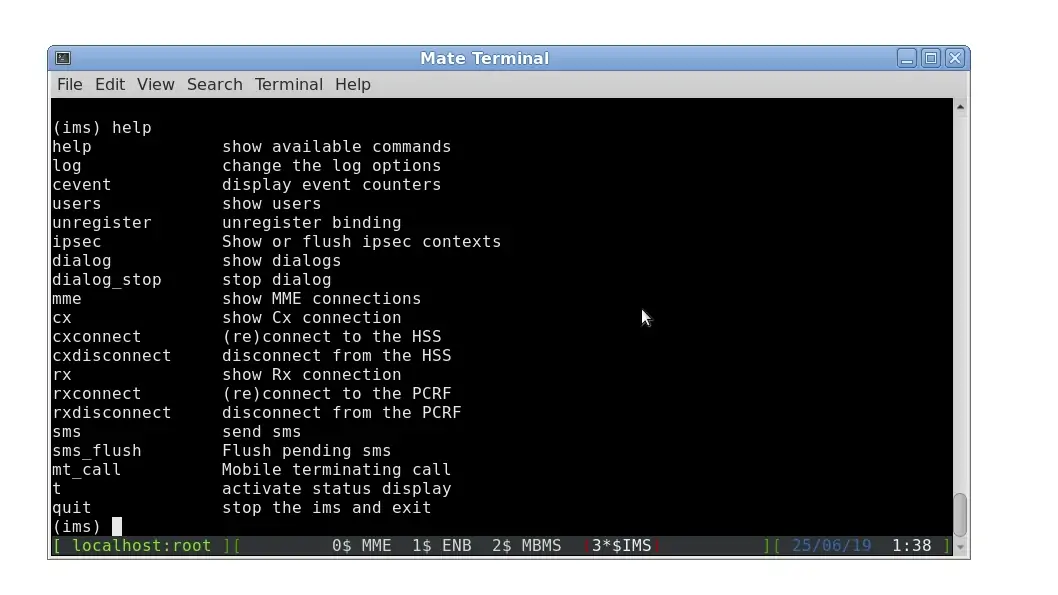
ctrl+a d
The LTE automatic service uses /root/ots/config/ots.cfg for its configuration.
The format is shell.
The default configuration file is generated during installation.
To use your own configuration we recommend to create a new file and change /root/ots/config/ots.cfg
symbolic link to point to your file.
Else, your changes will be overriden at next software install/upgrade.
Example:
Create a my-ots.cfg file and put the following inside:
# Include default configuration
source ots.default.cfg

# Add your custom config
MME_CONFIG_FILE=/root/mme/config/my-mme.cfg
Then:
cd /root/ots/config
rm -f ots.cfg
ln -s my-ots.cfg ots.cfg
The configuration variables are:
ERROR_DELAYTime in seconds before restarting any software component badly stopped.
LOG_FILELog file of the lte service.
LOG_FILE_SIZEAutomatic service log file size for rotation (K, M, G units accepted).
LOG_PATHPath where to store rotated log.
LOG_SIZEComponents log file size threshold for rotation (K, M, G units accepted).
If log file size exceed this value, file will be rotated to LOG_PATH
if set or to same directory.
LOG_COUNTComponents log file count threshold for rotation (K, M, G units accepted).
If number of dumped logs in file size exceed this value, file will be rotated to LOG_PATH
if set or to same directory.
LOG_PERSISTENT_SIZEMaximum amount of logs stored in LOG_PATH.
When directory reaches this threshold, oldest log file will be deleted.
LOG_PERSISTENT_COUNTMaximum number of log files stored in LOG_PATH.
When directory reaches this threshold, oldest log file will be deleted.
LOG_POLL_DELAYTime in seconds between two checks for cleaning LOG_PATH.
LOG_GZIPSet it to 1 to compress log file when rotated.
LOG_BACKUP_ON_STOPSet it to n to avoid log backup (to LOG_PATH) on component stop.
COMPONENTSList of component IDs to start.
Each component can be configured with the following variables where
<COMP> is the ID of the component and must be unique.
<COMP>_PATHPath of the component binary. If not found or not set, component won’t be started.
<COMP>_CONFIG_FILEConfig file to use for this component. Relative to XXX_PATH.
<COMP>_TITLETitle to display in screen component. ID by default.
<COMP>_INITlte_init.sh command line parameter for component.
<COMP>_AUTOSTARTIf set to 1 or not defined, component will be started automatically by service, else, you need to start it manually.
<COMP>_TYPEComponent flavour. Can be MME, ENB, IMS, MBMSGW, LICENSE...
<COMP>_WINComponent window index inside screen session.
<COMP>_CONFIG_FILEComponent configuration file
<COMP>_OUTPUT_FILEIf set, defineds a filename where to dump both stdout and stderr of the
component process.
If not set, only stderr will be dumped to /tmp/.stderr.<COMP>
<COMP>_SCRIPTIf set, defines a shell script that will be executed on each component state change.
Arguments are <COMP> <STATE> [<ERROR>] where state can be:
This can be used to perform any action before component start by using the state starting.
Note that the script is executed synchronously and may delay or block component startup.
IDs generated by installation process are the same as type.
Those variables are used by ltestart.sh script.
For instance, if you want to setup two MME instance, use the following:
MME_PATH=/root/mme
MME_TYPE=MME
...

MME2_PATH=/root/mme
MME2_TYPE=MME
...

COMPONENTS+=" MME MME1"
Logs will be backed up in /var/log/lte directory.
The /tmp/lte.log file is log for service.
extranet.amarisoft.com. This site would give you access to our documentation and new releases.
support.amarisoft.com. Please note that you need to have an active account in our Extranet in order to be able to login to our support site. Your credentials are the same as the ones you use to access Extranet.
ftp.amarisoft.com. This server should be used to exchange big logs. Your credentials are the same as the ones you use to access Extranet. Please note that you need to use an FTP client supporting SSL such as Filezilla.
delivery@amarisoft.com.
This document is copyright (C) 2012-2025 Amarisoft. Its redistribution without authorization is prohibited.
This document is available without any express or implied warranty and is subject to change without notice. In no event will Amarisoft be held liable for any damages arising from the use of this document.
For any technical issue, please raise a ticket from our support site at https://support.amarisoft.com/.
To learn more about our technology and solutions, e-mail us at customer@amarisoft.com or visit https://www.amarisoft.com.